Google Tools
Use commands to save or append AI-generated content to Google Docs and Sheets
Overview
In this system a tool call is a special command or directive that one can add to a prompt to tell the system where to save content after it generates a response. Instead of chatting about files, you use directives to give precise instructions: the AI generates content, and the system automatically saves the response to Google Docs or Sheets.
What makes this different?
This is separate from the conversational Google File Integration where you chat about files. In this case the tool uses a post-processing approach: directives tell the system what to do after the AI responds. This is perfect for workflows where you want to generate content and save it in one seamless step.
Setup
Navigate to Settings
Go to Settings → Integrations → Policies in your Mimesys dashboard
Connect Your Google Account
Click on the Connected Apps tab. You'll see options to connect Google Drive, Google Docs, and Google Sheets.
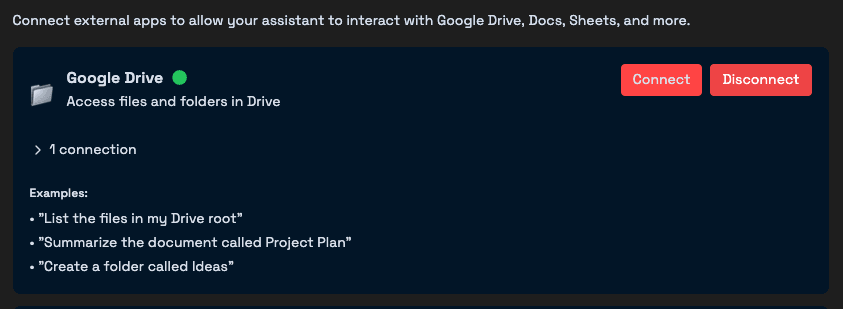
Click Connect next to each app (Google Drive, Google Docs, and Google Sheets) to authorize access.
Authorize Access
Follow the Google OAuth flow to grant Composio permission to:
- Access files and folders in Google Drive
- Create and update Google Docs
- Create and update Google Sheets
Composio is a product that integrates securely with Google Docs and Sheets. Read more at https://composio.dev/ andhttps://trust.composio.dev/
Start Using Tools
Once connected, you can immediately start using directives in any prompt to save and append content to your Google Docs and Sheets!
Note: One-time Setup
You only need to connect your Google account once. After that, all directives will work automatically across all your chats. The connection remains active until you disconnect from the Settings page.
Quick Reference
Save Operations
Create a new document or spreadsheet with AI-generated content
Append Operations
Add content to an existing document or spreadsheet
Complete Workflow Examples
Example 1: Meeting Notes (Google Docs)
Step 1: Create the document
Your prompt:
"Write meeting notes for today's standup and save them.
- Team discussed the new feature release
- Sprint planning for next week
- Blockers identified
[[tool composio save 'standup-notes.md']]"
Step 2: Add action items
Your prompt:
"Add action items from the meeting:
- John: Review PR #123 by Friday
- Sarah: Update documentation
- Team: Test new feature in staging
[[tool composio append-doc '1LNAVProxMN9q47potCzUCYWqKn_tYk9zvYIZ-VEjONs']]"
Step 3: Continue building
Example 2: Sales Data (Google Sheets)
Step 1: Create the spreadsheet
Your prompt:
"Generate Q4 2024 sales data using the information below and save as a spreadsheet.
Sales Data:
- Widget Pro: 1,250 units sold, $62,500 revenue, North America
- Gadget Plus: 980 units sold, $49,000 revenue, Europe
- Tool Master: 1,420 units sold, $71,000 revenue, Asia Pacific
Output as CSV with columns: Product, Units Sold, Revenue, Region
Include the header row.
[[tool composio save 'reports/q4-sales.csv']]"
Step 2: Add new quarter's data
Your prompt:
"Add Q1 2025 sales data to the spreadsheet.
New Sales Data:
- Widget Pro: 1,420 units, $71,000, North America
- Gadget Plus: 1,050 units, $52,500, Europe
- Tool Master: 1,580 units, $79,000, Asia Pacific
Output as CSV rows (no header). Same column order.
[[tool composio append-sheet '1A9FGo1mhoUNaqN3wE4M6BzT_example']]"
Important Rules
✅ Do This
- Use explicit types with IDs:[[tool composio append '{doc_id}' 'google-docs']]
- Use filenames with extensions:[[tool composio append 'notes.md']]
- Use folder paths for organization:[[tool composio save 'reports/sales.csv']]
- Provide seed data for clean output:Give the AI data to transform, not exact text to copy
❌ Don't Do This
- Use IDs without type:[[tool composio append '{doc_id}']] ✗ ERROR!
- Mix up doc types:Don't append to a Doc with 'google-sheets' type
- Provide exact output to copy:The AI will add commentary; give it data to generate from instead
Prompting Best Practices
Getting Clean Output (No Commentary)
Problem: AI models often add conversational text like "Here's the data you requested..."
Solution: Provide seed data and ask the AI to generate/transform, don't give exact output.
"Output this exact CSV:
Product,Units,Revenue
Widget,100,5000
[[tool composio save 'data.csv']]"
"Generate sales data using the information below and save as a spreadsheet.
Sales Data:
- Widget: 100 units sold, $5,000 revenue
Output as CSV with columns: Product, Units, Revenue
Include the header row.
[[tool composio save 'data.csv']]"
Prompt Templates
Creating a Document
"Generate [document type] using the information below and save it.
[Seed data with bullet points]
- Item 1: details
- Item 2: details
Format as [markdown/structured document] with clear sections.
[[tool composio save '[filename].md']]"
Creating a Spreadsheet
"Generate [data description] using the information below and save as a spreadsheet.
Data:
- Item 1: value1, value2, value3
- Item 2: value1, value2, value3
Output as CSV with columns: Column1, Column2, Column3
Include the header row.
[[tool composio save '[filename].csv']]"
Appending to a Spreadsheet
"Add the following [data description] to the spreadsheet.
New Data:
- Item 4: value1, value2, value3
- Item 5: value1, value2, value3
Output as CSV rows (no header). Same column order: Column1, Column2, Column3
[[tool composio append-sheet '[sheet_id]']]"
Common Use Cases
Meeting Notes
Generate and save meeting notes, then append action items and follow-ups incrementally
Data Collection
Build spreadsheets over time by appending new data rows to existing sheets
Weekly Logs
Create activity logs and append daily entries throughout the week
Multi-part Documents
Build comprehensive documents section by section (specs, PRDs, reports)
Sales Reports
Generate structured sales reports and update them with new quarters' data
Project Documentation
Organize project files in folders and build documentation incrementally
Troubleshooting
Error: "Must specify file type"
Cause: Using a document/sheet ID without explicit type parameter.
Fix: Add 'google-docs' or 'google-sheets' as the second parameter, or use type-specific operations like append-doc or append-sheet.
Error: "Could not get sheet names"
Cause: Trying to append to a Doc ID using Sheet logic.
Fix: Verify the document type and use the correct type parameter.
Error: "File not found"
Cause: The filename doesn't exist or was mistyped.
Fix: Check spelling, use the document ID instead, or create the file first with save operation.